 Mathieu Benoit
a2d3aa2a78
Mathieu Benoit
a2d3aa2a78
Added 30 .base.md files using the mmg (Multilingual Markdown Generator)
format to automatically generate English (.md) and French (.fr.md)
versions of all project documentation.
Updated conf/make.documentation.Makefile to process all .base.md files
via `make doc_markdown`.
325 lines
10 KiB
Markdown
325 lines
10 KiB
Markdown
|
|
# Windows 10 version 2004 and up or 11 - release and development
|
|
|
|
A guide on how to set up a workspace and run ERPLibre on Windows 10 version 2004 and up or Windows 11. There are two methods of installation, one is automatic and the other manual.
|
|
|
|
**"WSL2 Ubuntu 22.04" will be referred as "WSL2"**
|
|
|
|
**"PyCharm Professional" will be referred as "PyCharm"**
|
|
|
|
## Install WSL2
|
|
|
|
Run Powershell with administrator rights and run the following command:
|
|
|
|
```bash
|
|
wsl --install -d Ubuntu-22.04
|
|
```
|
|
|
|
If you have trouble opening the Powershell with administrator rights, press `Windows + R`, enter the following line and press `OK`. You will be automatically prompted for administrator rights.
|
|
|
|
```bash
|
|
powershell.exe
|
|
```
|
|
|
|
### Troubleshooting - Optional
|
|
If you have issues enable virtualization options in BIOS is available (hyper-v, vt-x, etc). Search for `Turn Windows features on or off` in the Windows search bar and ensure that `Windows Subsystem for Linux` is turned on before restarting your machine.
|
|
|
|
You can also try theses powershell commands:
|
|
|
|
```bash
|
|
dism.exe /online /enable-feature /featurename:VirtualMachinePlatform /all /norestart
|
|
wsl --set-default-version 2
|
|
```
|
|
|
|
Download and install the lastest Linux kernel update package from Microsoft with the following [link](https://wslstorestorage.blob.core.windows.net/wslblob/wsl_update_x64.msi):
|
|
|
|
```bash
|
|
https://wslstorestorage.blob.core.windows.net/wslblob/wsl_update_x64.msi
|
|
```
|
|
|
|
Only run this command as your last resort as it can break other virtual machines:
|
|
|
|
```bash
|
|
bcdedit /set hypervisorlaunchtype auto
|
|
```
|
|
|
|
### Other Installation methods for WSL2
|
|
|
|
Run Powershell with administrator rights and run the following command:
|
|
|
|
```bash
|
|
curl.exe -L -o ubuntu-2004.appx https://aka.ms/wslubuntu2004
|
|
```
|
|
|
|
Run Powershell with administrator rights and run the following commands:
|
|
|
|
```bash
|
|
Invoke-WebRequest -Uri https://aka.ms/wslubuntu2004 -OutFile Ubuntu.appx -UseBasicParsing
|
|
Add-AppxPackage .\Ubuntu.appx
|
|
```
|
|
|
|
Install WSL2 from the Microsoft Store with the following [link](https://apps.microsoft.com/store/detail/ubuntu-22041-lts/9PN20MSR04DW):
|
|
|
|
```bash
|
|
https://apps.microsoft.com/store/detail/ubuntu-22041-lts/9PN20MSR04DW
|
|
```
|
|
|
|
## Setup WSL2 for ERPLibre
|
|
|
|
Once WSL2 has been installed correctly, reboot your computer.
|
|
|
|
### You can open your Ubuntu many ways:
|
|
|
|
* Search "Ubuntu" by clicking the Windows key
|
|
* [Download the Windows Terminal from the Microsoft Store](https://apps.microsoft.com/store/detail/windows-terminal/9N0DX20HK701)
|
|
|
|
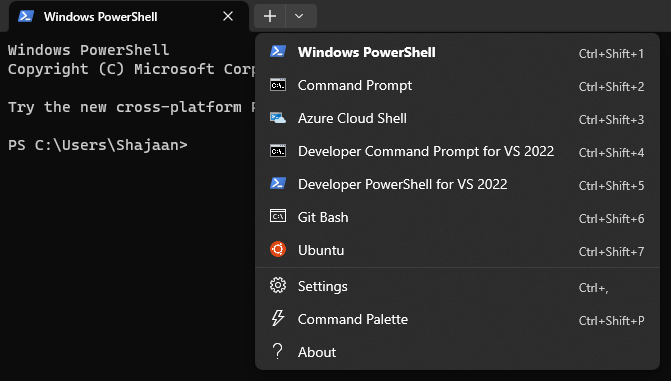
If you are using the Windows Terminal, you just have to click the little arrow next to the + sign and then you will see Ubuntu.
|
|
|
|
|
|
|
|
|
|
### Setup a GUI for you Ubuntu
|
|
|
|
1. Update your Ubuntu
|
|
|
|
```bash
|
|
sudo apt-get update -y && sudo apt-get upgrade -y
|
|
```
|
|
|
|
2. Install the XFCE4 Desktop
|
|
|
|
```bash
|
|
sudo apt install -y xrdp xfce4 xfce4-goodies
|
|
```
|
|
|
|
3. Setup the Desktop
|
|
|
|
```bash
|
|
sudo cp /etc/xrdp/xrdp.ini /etc/xrdp/xrdp.ini.bak
|
|
sudo sed -i 's/3389/3390/g' /etc/xrdp/xrdp.ini
|
|
sudo sed -i 's/max_bpp=32/#max_bpp=32\nmax_bpp=128/g' /etc/xrdp/xrdp.ini
|
|
sudo sed -i 's/xserverbpp=24/#xserverbpp=24\nxserverbpp=128/g' /etc/xrdp/xrdp.ini
|
|
echo xfce4-session > ~/.xsession
|
|
```
|
|
|
|
4. Setup the Remote Desktop Connection
|
|
|
|
```bash
|
|
sudo nano /etc/xrdp/startwm.sh
|
|
```
|
|
|
|
Comment these lines with a #
|
|
|
|
```bash
|
|
test -x /etc/X11/Xsession && exec /etc/X11/Xsession
|
|
exec /bin/sh /etc/X11/Xsession
|
|
```
|
|
|
|
Add this line at the end of the file
|
|
|
|
```bash
|
|
startxfce4
|
|
```
|
|
|
|
Exit with Ctrl+S, Ctrl+X
|
|
|
|
5. Starting Ubuntu Desktop GUI
|
|
|
|
Open Ubuntu Terminal on your Windows and enter this command
|
|
|
|
```bash
|
|
sudo /etc/init.d/xrdp start
|
|
```
|
|
|
|
Then open *Remote Desktop Connection* by clicking the Windows key and connect to *localhost:3390*
|
|
|
|
### Memory - Optional
|
|
If WSL is taking too much memory, you can reduce with an easy step.
|
|
You just have to go to *C:\Users\YourUsername\.wslconfig* and create a *.wslconfig* file and write:
|
|
|
|
```bash
|
|
sudo /etc/init.d/xrdp start
|
|
|
|
[wsl2]
|
|
memory=3GB
|
|
```
|
|
|
|
### Installation of the necessary and up-to-date tools
|
|
|
|
```bash
|
|
sudo apt update
|
|
sudo apt install build-essential zlib1g-dev libncurses5-dev libgdbm-dev libnss3-dev libssl-dev libsqlite3-dev libreadline-dev libffi-dev curl libbz2-dev rsync make git
|
|
```
|
|
|
|
## Installation of ERPLibre under WSL2
|
|
|
|
Make sure to be in the directory where you want to clone the project.
|
|
|
|
```bash
|
|
git clone https://github.com/ERPLibre/ERPLibre.git
|
|
cd ERPLibre
|
|
make install
|
|
```
|
|
|
|
Add role to PostgresSQL, change `USERNAME` field in the command with your UNIX username from your WSL2 environment.
|
|
|
|
```bash
|
|
sudo service postgresql start
|
|
sudo su - postgres -c "createuser -s USERNAME" 2>/dev/null || true
|
|
```
|
|
|
|
## Common Problems During Installation
|
|
|
|
### Error During `make install`
|
|
Ensure all dependencies are installed correctly. Re-run the following command to fix any broken dependencies:
|
|
|
|
```bash
|
|
sudo apt-get install -f
|
|
```
|
|
|
|
### PostgreSQL Not Starting
|
|
Check the PostgreSQL service status with the following command:
|
|
|
|
```bash
|
|
sudo service postgresql status
|
|
```
|
|
|
|
If PostgreSQL is not running, try restarting it with:
|
|
|
|
```bash
|
|
sudo service postgresql restart
|
|
```
|
|
|
|
|
|
## Running ERPLibre
|
|
|
|
Everytime you restart your machine, the following command has to be executed to start the PostgreSQL service if it is not already running:
|
|
|
|
```bash
|
|
sudo service postgresql start
|
|
```
|
|
|
|
After that run this command in the root of the project:
|
|
|
|
```bash
|
|
./run.sh
|
|
```
|
|
|
|
## Verifying ERPLibre
|
|
While ERPLibre is running, make sure that you can connect to the following URL `http://localhost:8069` and have the ability to create, modify and remove databases.
|
|
|
|
## Set up Development Environment - PyCharm
|
|
|
|
### Install PyCharm
|
|
|
|
Install PyCharm from the following [link](https://www.jetbrains.com/pycharm/download/#section=windows):
|
|
|
|
```bash
|
|
https://www.jetbrains.com/pycharm/download/#section=windows
|
|
```
|
|
|
|
### Set up Pycharm
|
|
|
|
Select `Connect to WSL` under `Remote Development`. After that select your Ubuntu instace ("Ubuntu-22.04"). Point `Project directory` to the root of the project. Once everything has been selected and filled out correctly, click on `Start IDE and Connect`.
|
|
|
|

|
|
|
|
Press `CTRL+ALT+S`, search for `interpreter` and inside the `Python Interpreter` page, click on `Add Interpreter` and select `Add Local Interpreter...`.
|
|
|
|

|
|
|
|
Make sure to select `Virtualenv Environment` on the left and the `Existing` radio button. Once theses are both selected properly, point your interpreter to the `../ERPLibre/.venv/bin/python` directory of the project and click on `OK`.
|
|
|
|

|
|
|
|
If these last steps to set up your development environment were unsuccessful, follow the next "Manual" steps to set up your environment.
|
|
|
|
## Manual Installation
|
|
|
|
### Install Python 3.10.14
|
|
You can delete the files that are left over in your home directory regarding the python installation when the steps have been completed succesfully.
|
|
|
|
```bash
|
|
cd ~
|
|
wget https://www.python.org/ftp/python/3.10.14/Python-3.10.14.tgz
|
|
tar -xzf Python-3.10.14.tgz
|
|
cd Python-3.10.14
|
|
./configure --enable-optimizations
|
|
make -j $(nproc)
|
|
sudo make install
|
|
```
|
|
|
|
### Verify the installation
|
|
|
|
```bash
|
|
python3.10
|
|
```
|
|
|
|
### Set Python 3.10.14 as default
|
|
|
|
```bash
|
|
alias python='/usr/local/bin/python3.10'
|
|
source ~/.bashrc
|
|
```
|
|
|
|
### Set up Pycharm
|
|
|
|
Open the project directory in PyCharm.
|
|
|
|
Press `CTRL+ALT+S`, search for `interpreter` and inside the `Python Interpreter` page, click on `Add Interpreter` and select `On WSL...`.
|
|
|
|

|
|
|
|
Wait until PyCharm detects your WSL2 instance and press `NEXT`. Click on `System Interpreter` on the left, select the correct interpreter if it hasn't done so automatically and click `Create`.
|
|
|
|

|
|
|
|
Close the project's settings. Once PyCharm prompts you to import modules and allow it.
|
|
|
|
## Common problems with Windows Development
|
|
|
|
### Broken Terminal
|
|
|
|
Search for `terminal` in the settings, and under `Application Settings` in the `Shell path:` field enter the following line:
|
|
|
|
```bash
|
|
wsl.exe
|
|
```
|
|
|
|

|
|
|
|
### High Memory Usage warnings
|
|
If you experience high memory usage, click on `Help` in the toolbar and choose `Change Memory Settings` to increase the memory heap of the IDE.
|
|
|
|
### Missing or incorrect imported modules
|
|
PyCharm might not fully recognize some details from `requirements.txt` and `pyproject.toml` (e.g., specific module versions). If you encounter issues at runtime or while debugging, search for the correct version of the module and reinstall it using PyCharm's package manager.
|
|
|
|
### Can't run ERPLibre from PyCharm
|
|
|
|
If ERPLibre fails to run from PyCharm, execute the following command in the root directory of the project from the terminal in PyCharm or WSL2:
|
|
|
|
```bash
|
|
./script/ide/pycharm_configuration.py
|
|
```
|
|
|
|
### Can't restart ERPLibre
|
|
Run `htop` from the terminal in PyCharm or WSL2 and close the python processes related to ERPLibre to release the socket.
|
|
|
|
## References
|
|
[WSL Installation](https://learn.microsoft.com/en-us/windows/wsl/install)
|
|
Comprehensive guide on installing Windows Subsystem for Linux (WSL) on Windows.
|
|
|
|
[PostgreSQL Official Documentation](https://www.postgresql.org/docs/)
|
|
Official PostgreSQL documentation for troubleshooting common issues and learning more about PostgreSQL commands and configuration.
|
|
|
|
[PyCharm Installation and Configuration](https://www.jetbrains.com/pycharm/quickstart/)
|
|
Quick start guide for setting up and configuring PyCharm, including handling Python modules and environment setup.
|
|
|
|
[WSL Troubleshooting](https://learn.microsoft.com/en-us/windows/wsl/troubleshoot)
|
|
Troubleshooting guide for common issues encountered in WSL, providing solutions for various problems that may arise.
|
|
|
|
[Linux GUI](https://hub.tcno.co/windows/wsl/desktop-gui/)
|
|
Instructions for setting up a graphical user interface (GUI) in WSL, which might be helpful for better integration of Linux applications.
|
|
|
|
[Memory Problem](https://www.aleksandrhovhannisyan.com/blog/limiting-memory-usage-in-wsl-2/)
|
|
Guide on how to manage and limit memory usage in WSL 2 to avoid high memory consumption issues.
|