
609 lines
20 KiB
Markdown
609 lines
20 KiB
Markdown
<!---------------------------->
|
|
<!-- multilingual suffix: en, fr -->
|
|
<!-- no suffix: en -->
|
|
<!---------------------------->
|
|
|
|
<!-- [en] -->
|
|
# Windows 10 version 2004 and up or 11 - release and development
|
|
|
|
A guide on how to set up a workspace and run ERPLibre on Windows 10 version 2004 and up or Windows 11. There are two methods of installation, one is automatic and the other manual.
|
|
|
|
**"WSL2 Ubuntu 22.04" will be referred as "WSL2"**
|
|
|
|
**"PyCharm Professional" will be referred as "PyCharm"**
|
|
|
|
## Install WSL2
|
|
|
|
Run Powershell with administrator rights and run the following command:
|
|
|
|
<!-- [fr] -->
|
|
# Windows 10 version 2004 et plus ou 11 - publication et développement
|
|
|
|
Un guide pour configurer un espace de travail et exécuter ERPLibre sur Windows 10 version 2004 et plus ou Windows 11. Il existe deux méthodes d'installation, une automatique et l'autre manuelle.
|
|
|
|
**"WSL2 Ubuntu 22.04" sera désigné par "WSL2"**
|
|
|
|
**"PyCharm Professional" sera désigné par "PyCharm"**
|
|
|
|
## Installer WSL2
|
|
|
|
Exécutez Powershell avec les droits administrateur et lancez la commande suivante :
|
|
|
|
<!-- [common] -->
|
|
```bash
|
|
wsl --install -d Ubuntu-22.04
|
|
```
|
|
|
|
<!-- [en] -->
|
|
If you have trouble opening the Powershell with administrator rights, press `Windows + R`, enter the following line and press `OK`. You will be automatically prompted for administrator rights.
|
|
|
|
<!-- [fr] -->
|
|
Si vous avez des difficultés à ouvrir Powershell avec les droits administrateur, appuyez sur `Windows + R`, entrez la ligne suivante et appuyez sur `OK`. Les droits administrateur vous seront automatiquement demandés.
|
|
|
|
<!-- [common] -->
|
|
```bash
|
|
powershell.exe
|
|
```
|
|
|
|
<!-- [en] -->
|
|
### Troubleshooting - Optional
|
|
If you have issues enable virtualization options in BIOS is available (hyper-v, vt-x, etc). Search for `Turn Windows features on or off` in the Windows search bar and ensure that `Windows Subsystem for Linux` is turned on before restarting your machine.
|
|
|
|
You can also try theses powershell commands:
|
|
|
|
<!-- [fr] -->
|
|
### Dépannage - Optionnel
|
|
Si vous rencontrez des problèmes, activez les options de virtualisation dans le BIOS si disponibles (hyper-v, vt-x, etc). Recherchez `Activer ou désactiver des fonctionnalités Windows` dans la barre de recherche Windows et assurez-vous que `Sous-système Windows pour Linux` est activé avant de redémarrer votre machine.
|
|
|
|
Vous pouvez aussi essayer ces commandes powershell :
|
|
|
|
<!-- [common] -->
|
|
```bash
|
|
dism.exe /online /enable-feature /featurename:VirtualMachinePlatform /all /norestart
|
|
wsl --set-default-version 2
|
|
```
|
|
|
|
<!-- [en] -->
|
|
Download and install the lastest Linux kernel update package from Microsoft with the following [link](https://wslstorestorage.blob.core.windows.net/wslblob/wsl_update_x64.msi):
|
|
|
|
<!-- [fr] -->
|
|
Téléchargez et installez le dernier package de mise à jour du noyau Linux de Microsoft avec le [lien](https://wslstorestorage.blob.core.windows.net/wslblob/wsl_update_x64.msi) suivant :
|
|
|
|
<!-- [common] -->
|
|
```bash
|
|
https://wslstorestorage.blob.core.windows.net/wslblob/wsl_update_x64.msi
|
|
```
|
|
|
|
<!-- [en] -->
|
|
Only run this command as your last resort as it can break other virtual machines:
|
|
|
|
<!-- [fr] -->
|
|
N'exécutez cette commande qu'en dernier recours car elle peut casser d'autres machines virtuelles :
|
|
|
|
<!-- [common] -->
|
|
```bash
|
|
bcdedit /set hypervisorlaunchtype auto
|
|
```
|
|
|
|
<!-- [en] -->
|
|
### Other Installation methods for WSL2
|
|
|
|
Run Powershell with administrator rights and run the following command:
|
|
|
|
<!-- [fr] -->
|
|
### Autres méthodes d'installation pour WSL2
|
|
|
|
Exécutez Powershell avec les droits administrateur et lancez la commande suivante :
|
|
|
|
<!-- [common] -->
|
|
```bash
|
|
curl.exe -L -o ubuntu-2004.appx https://aka.ms/wslubuntu2004
|
|
```
|
|
|
|
<!-- [en] -->
|
|
Run Powershell with administrator rights and run the following commands:
|
|
|
|
<!-- [fr] -->
|
|
Exécutez Powershell avec les droits administrateur et lancez les commandes suivantes :
|
|
|
|
<!-- [common] -->
|
|
```bash
|
|
Invoke-WebRequest -Uri https://aka.ms/wslubuntu2004 -OutFile Ubuntu.appx -UseBasicParsing
|
|
Add-AppxPackage .\Ubuntu.appx
|
|
```
|
|
|
|
<!-- [en] -->
|
|
Install WSL2 from the Microsoft Store with the following [link](https://apps.microsoft.com/store/detail/ubuntu-22041-lts/9PN20MSR04DW):
|
|
|
|
<!-- [fr] -->
|
|
Installez WSL2 depuis le Microsoft Store avec le [lien](https://apps.microsoft.com/store/detail/ubuntu-22041-lts/9PN20MSR04DW) suivant :
|
|
|
|
<!-- [common] -->
|
|
```bash
|
|
https://apps.microsoft.com/store/detail/ubuntu-22041-lts/9PN20MSR04DW
|
|
```
|
|
|
|
<!-- [en] -->
|
|
## Setup WSL2 for ERPLibre
|
|
|
|
Once WSL2 has been installed correctly, reboot your computer.
|
|
|
|
### You can open your Ubuntu many ways:
|
|
|
|
* Search "Ubuntu" by clicking the Windows key
|
|
* [Download the Windows Terminal from the Microsoft Store](https://apps.microsoft.com/store/detail/windows-terminal/9N0DX20HK701)
|
|
|
|
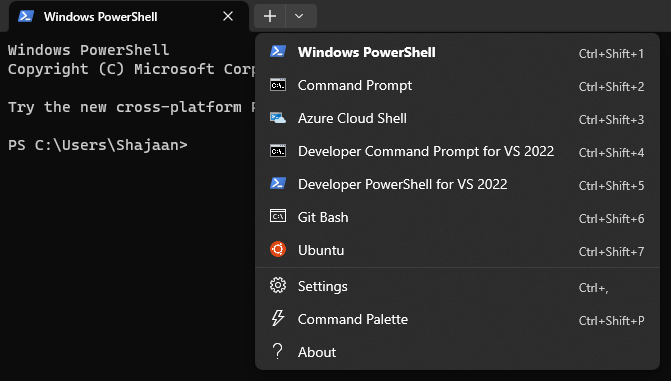
If you are using the Windows Terminal, you just have to click the little arrow next to the + sign and then you will see Ubuntu.
|
|
|
|
<!-- [fr] -->
|
|
## Configurer WSL2 pour ERPLibre
|
|
|
|
Une fois WSL2 installé correctement, redémarrez votre ordinateur.
|
|
|
|
### Vous pouvez ouvrir votre Ubuntu de plusieurs façons :
|
|
|
|
* Recherchez "Ubuntu" en cliquant sur la touche Windows
|
|
* [Téléchargez le Terminal Windows depuis le Microsoft Store](https://apps.microsoft.com/store/detail/windows-terminal/9N0DX20HK701)
|
|
|
|
Si vous utilisez le Terminal Windows, vous n'avez qu'à cliquer sur la petite flèche à côté du signe + et vous verrez Ubuntu.
|
|
|
|
<!-- [common] -->
|
|
|
|
|
|
<!-- [en] -->
|
|
|
|
### Setup a GUI for you Ubuntu
|
|
|
|
1. Update your Ubuntu
|
|
|
|
<!-- [fr] -->
|
|
|
|
### Configurer une interface graphique pour votre Ubuntu
|
|
|
|
1. Mettre à jour votre Ubuntu
|
|
|
|
<!-- [common] -->
|
|
```bash
|
|
sudo apt-get update -y && sudo apt-get upgrade -y
|
|
```
|
|
|
|
<!-- [en] -->
|
|
2. Install the XFCE4 Desktop
|
|
|
|
<!-- [fr] -->
|
|
2. Installer le bureau XFCE4
|
|
|
|
<!-- [common] -->
|
|
```bash
|
|
sudo apt install -y xrdp xfce4 xfce4-goodies
|
|
```
|
|
|
|
<!-- [en] -->
|
|
3. Setup the Desktop
|
|
|
|
<!-- [fr] -->
|
|
3. Configurer le bureau
|
|
|
|
<!-- [common] -->
|
|
```bash
|
|
sudo cp /etc/xrdp/xrdp.ini /etc/xrdp/xrdp.ini.bak
|
|
sudo sed -i 's/3389/3390/g' /etc/xrdp/xrdp.ini
|
|
sudo sed -i 's/max_bpp=32/#max_bpp=32\nmax_bpp=128/g' /etc/xrdp/xrdp.ini
|
|
sudo sed -i 's/xserverbpp=24/#xserverbpp=24\nxserverbpp=128/g' /etc/xrdp/xrdp.ini
|
|
echo xfce4-session > ~/.xsession
|
|
```
|
|
|
|
<!-- [en] -->
|
|
4. Setup the Remote Desktop Connection
|
|
|
|
<!-- [fr] -->
|
|
4. Configurer la connexion Bureau à distance
|
|
|
|
<!-- [common] -->
|
|
```bash
|
|
sudo nano /etc/xrdp/startwm.sh
|
|
```
|
|
|
|
<!-- [en] -->
|
|
Comment these lines with a #
|
|
|
|
<!-- [fr] -->
|
|
Commentez ces lignes avec un #
|
|
|
|
<!-- [common] -->
|
|
```bash
|
|
test -x /etc/X11/Xsession && exec /etc/X11/Xsession
|
|
exec /bin/sh /etc/X11/Xsession
|
|
```
|
|
|
|
<!-- [en] -->
|
|
Add this line at the end of the file
|
|
|
|
<!-- [fr] -->
|
|
Ajoutez cette ligne à la fin du fichier
|
|
|
|
<!-- [common] -->
|
|
```bash
|
|
startxfce4
|
|
```
|
|
|
|
<!-- [en] -->
|
|
Exit with Ctrl+S, Ctrl+X
|
|
|
|
5. Starting Ubuntu Desktop GUI
|
|
|
|
Open Ubuntu Terminal on your Windows and enter this command
|
|
|
|
<!-- [fr] -->
|
|
Quittez avec Ctrl+S, Ctrl+X
|
|
|
|
5. Démarrer l'interface graphique du bureau Ubuntu
|
|
|
|
Ouvrez le terminal Ubuntu sur votre Windows et entrez cette commande
|
|
|
|
<!-- [common] -->
|
|
```bash
|
|
sudo /etc/init.d/xrdp start
|
|
```
|
|
|
|
<!-- [en] -->
|
|
Then open *Remote Desktop Connection* by clicking the Windows key and connect to *localhost:3390*
|
|
|
|
### Memory - Optional
|
|
If WSL is taking too much memory, you can reduce with an easy step.
|
|
You just have to go to *C:\Users\YourUsername\.wslconfig* and create a *.wslconfig* file and write:
|
|
|
|
<!-- [fr] -->
|
|
Ensuite ouvrez *Connexion Bureau à distance* en cliquant sur la touche Windows et connectez-vous à *localhost:3390*
|
|
|
|
### Mémoire - Optionnel
|
|
Si WSL utilise trop de mémoire, vous pouvez la réduire avec une étape simple.
|
|
Il suffit d'aller dans *C:\Users\VotreNomUtilisateur\.wslconfig* et de créer un fichier *.wslconfig* et d'écrire :
|
|
|
|
<!-- [common] -->
|
|
```bash
|
|
sudo /etc/init.d/xrdp start
|
|
|
|
[wsl2]
|
|
memory=3GB
|
|
```
|
|
|
|
<!-- [en] -->
|
|
### Installation of the necessary and up-to-date tools
|
|
|
|
<!-- [fr] -->
|
|
### Installation des outils nécessaires et à jour
|
|
|
|
<!-- [common] -->
|
|
```bash
|
|
sudo apt update
|
|
sudo apt install build-essential zlib1g-dev libncurses5-dev libgdbm-dev libnss3-dev libssl-dev libsqlite3-dev libreadline-dev libffi-dev curl libbz2-dev rsync make git
|
|
```
|
|
|
|
<!-- [en] -->
|
|
## Installation of ERPLibre under WSL2
|
|
|
|
Make sure to be in the directory where you want to clone the project.
|
|
|
|
<!-- [fr] -->
|
|
## Installation d'ERPLibre sous WSL2
|
|
|
|
Assurez-vous d'être dans le répertoire où vous souhaitez cloner le projet.
|
|
|
|
<!-- [common] -->
|
|
```bash
|
|
git clone https://github.com/ERPLibre/ERPLibre.git
|
|
cd ERPLibre
|
|
make install
|
|
```
|
|
|
|
<!-- [en] -->
|
|
Add role to PostgresSQL, change `USERNAME` field in the command with your UNIX username from your WSL2 environment.
|
|
|
|
<!-- [fr] -->
|
|
Ajoutez un rôle à PostgreSQL, changez le champ `USERNAME` dans la commande avec votre nom d'utilisateur UNIX de votre environnement WSL2.
|
|
|
|
<!-- [common] -->
|
|
```bash
|
|
sudo service postgresql start
|
|
sudo su - postgres -c "createuser -s USERNAME" 2>/dev/null || true
|
|
```
|
|
|
|
<!-- [en] -->
|
|
## Common Problems During Installation
|
|
|
|
### Error During `make install`
|
|
Ensure all dependencies are installed correctly. Re-run the following command to fix any broken dependencies:
|
|
|
|
<!-- [fr] -->
|
|
## Problèmes courants lors de l'installation
|
|
|
|
### Erreur lors de `make install`
|
|
Assurez-vous que toutes les dépendances sont installées correctement. Relancez la commande suivante pour corriger les dépendances cassées :
|
|
|
|
<!-- [common] -->
|
|
```bash
|
|
sudo apt-get install -f
|
|
```
|
|
|
|
<!-- [en] -->
|
|
### PostgreSQL Not Starting
|
|
Check the PostgreSQL service status with the following command:
|
|
|
|
<!-- [fr] -->
|
|
### PostgreSQL ne démarre pas
|
|
Vérifiez le statut du service PostgreSQL avec la commande suivante :
|
|
|
|
<!-- [common] -->
|
|
```bash
|
|
sudo service postgresql status
|
|
```
|
|
|
|
<!-- [en] -->
|
|
If PostgreSQL is not running, try restarting it with:
|
|
|
|
<!-- [fr] -->
|
|
Si PostgreSQL ne fonctionne pas, essayez de le redémarrer avec :
|
|
|
|
<!-- [common] -->
|
|
```bash
|
|
sudo service postgresql restart
|
|
```
|
|
|
|
<!-- [en] -->
|
|
|
|
## Running ERPLibre
|
|
|
|
Everytime you restart your machine, the following command has to be executed to start the PostgreSQL service if it is not already running:
|
|
|
|
<!-- [fr] -->
|
|
|
|
## Exécuter ERPLibre
|
|
|
|
À chaque redémarrage de votre machine, la commande suivante doit être exécutée pour démarrer le service PostgreSQL s'il n'est pas déjà en cours d'exécution :
|
|
|
|
<!-- [common] -->
|
|
```bash
|
|
sudo service postgresql start
|
|
```
|
|
|
|
<!-- [en] -->
|
|
After that run this command in the root of the project:
|
|
|
|
<!-- [fr] -->
|
|
Ensuite lancez cette commande à la racine du projet :
|
|
|
|
<!-- [common] -->
|
|
```bash
|
|
./run.sh
|
|
```
|
|
|
|
<!-- [en] -->
|
|
## Verifying ERPLibre
|
|
While ERPLibre is running, make sure that you can connect to the following URL `http://localhost:8069` and have the ability to create, modify and remove databases.
|
|
|
|
## Set up Development Environment - PyCharm
|
|
|
|
### Install PyCharm
|
|
|
|
Install PyCharm from the following [link](https://www.jetbrains.com/pycharm/download/#section=windows):
|
|
|
|
<!-- [fr] -->
|
|
## Vérification d'ERPLibre
|
|
Pendant qu'ERPLibre est en cours d'exécution, assurez-vous que vous pouvez vous connecter à l'URL suivante `http://localhost:8069` et que vous avez la possibilité de créer, modifier et supprimer des bases de données.
|
|
|
|
## Configurer l'environnement de développement - PyCharm
|
|
|
|
### Installer PyCharm
|
|
|
|
Installez PyCharm depuis le [lien](https://www.jetbrains.com/pycharm/download/#section=windows) suivant :
|
|
|
|
<!-- [common] -->
|
|
```bash
|
|
https://www.jetbrains.com/pycharm/download/#section=windows
|
|
```
|
|
|
|
<!-- [en] -->
|
|
### Set up Pycharm
|
|
|
|
Select `Connect to WSL` under `Remote Development`. After that select your Ubuntu instace ("Ubuntu-22.04"). Point `Project directory` to the root of the project. Once everything has been selected and filled out correctly, click on `Start IDE and Connect`.
|
|
|
|
<!-- [fr] -->
|
|
### Configurer Pycharm
|
|
|
|
Sélectionnez `Connect to WSL` sous `Remote Development`. Ensuite sélectionnez votre instance Ubuntu ("Ubuntu-22.04"). Pointez `Project directory` vers la racine du projet. Une fois que tout a été sélectionné et rempli correctement, cliquez sur `Start IDE and Connect`.
|
|
|
|
<!-- [common] -->
|
|

|
|
|
|
<!-- [en] -->
|
|
Press `CTRL+ALT+S`, search for `interpreter` and inside the `Python Interpreter` page, click on `Add Interpreter` and select `Add Local Interpreter...`.
|
|
|
|
<!-- [fr] -->
|
|
Appuyez sur `CTRL+ALT+S`, recherchez `interpreter` et dans la page `Python Interpreter`, cliquez sur `Add Interpreter` et sélectionnez `Add Local Interpreter...`.
|
|
|
|
<!-- [common] -->
|
|

|
|
|
|
<!-- [en] -->
|
|
Make sure to select `Virtualenv Environment` on the left and the `Existing` radio button. Once theses are both selected properly, point your interpreter to the `../ERPLibre/.venv/bin/python` directory of the project and click on `OK`.
|
|
|
|
<!-- [fr] -->
|
|
Assurez-vous de sélectionner `Virtualenv Environment` à gauche et le bouton radio `Existing`. Une fois les deux correctement sélectionnés, pointez votre interpréteur vers le répertoire `../ERPLibre/.venv/bin/python` du projet et cliquez sur `OK`.
|
|
|
|
<!-- [common] -->
|
|

|
|
|
|
<!-- [en] -->
|
|
If these last steps to set up your development environment were unsuccessful, follow the next "Manual" steps to set up your environment.
|
|
|
|
## Manual Installation
|
|
|
|
### Install Python 3.10.14
|
|
You can delete the files that are left over in your home directory regarding the python installation when the steps have been completed succesfully.
|
|
|
|
<!-- [fr] -->
|
|
Si ces dernières étapes pour configurer votre environnement de développement n'ont pas fonctionné, suivez les étapes "Manuelles" suivantes pour configurer votre environnement.
|
|
|
|
## Installation manuelle
|
|
|
|
### Installer Python 3.10.14
|
|
Vous pouvez supprimer les fichiers restants dans votre répertoire personnel concernant l'installation de Python une fois les étapes complétées avec succès.
|
|
|
|
<!-- [common] -->
|
|
```bash
|
|
cd ~
|
|
wget https://www.python.org/ftp/python/3.10.14/Python-3.10.14.tgz
|
|
tar -xzf Python-3.10.14.tgz
|
|
cd Python-3.10.14
|
|
./configure --enable-optimizations
|
|
make -j $(nproc)
|
|
sudo make install
|
|
```
|
|
|
|
<!-- [en] -->
|
|
### Verify the installation
|
|
|
|
<!-- [fr] -->
|
|
### Vérifier l'installation
|
|
|
|
<!-- [common] -->
|
|
```bash
|
|
python3.10
|
|
```
|
|
|
|
<!-- [en] -->
|
|
### Set Python 3.10.14 as default
|
|
|
|
<!-- [fr] -->
|
|
### Définir Python 3.10.14 par défaut
|
|
|
|
<!-- [common] -->
|
|
```bash
|
|
alias python='/usr/local/bin/python3.10'
|
|
source ~/.bashrc
|
|
```
|
|
|
|
<!-- [en] -->
|
|
### Set up Pycharm
|
|
|
|
Open the project directory in PyCharm.
|
|
|
|
Press `CTRL+ALT+S`, search for `interpreter` and inside the `Python Interpreter` page, click on `Add Interpreter` and select `On WSL...`.
|
|
|
|
<!-- [fr] -->
|
|
### Configurer Pycharm
|
|
|
|
Ouvrez le répertoire du projet dans PyCharm.
|
|
|
|
Appuyez sur `CTRL+ALT+S`, recherchez `interpreter` et dans la page `Python Interpreter`, cliquez sur `Add Interpreter` et sélectionnez `On WSL...`.
|
|
|
|
<!-- [common] -->
|
|

|
|
|
|
<!-- [en] -->
|
|
Wait until PyCharm detects your WSL2 instance and press `NEXT`. Click on `System Interpreter` on the left, select the correct interpreter if it hasn't done so automatically and click `Create`.
|
|
|
|
<!-- [fr] -->
|
|
Attendez que PyCharm détecte votre instance WSL2 et appuyez sur `NEXT`. Cliquez sur `System Interpreter` à gauche, sélectionnez le bon interpréteur s'il ne l'a pas fait automatiquement et cliquez sur `Create`.
|
|
|
|
<!-- [common] -->
|
|

|
|
|
|
<!-- [en] -->
|
|
Close the project's settings. Once PyCharm prompts you to import modules and allow it.
|
|
|
|
## Common problems with Windows Development
|
|
|
|
### Broken Terminal
|
|
|
|
Search for `terminal` in the settings, and under `Application Settings` in the `Shell path:` field enter the following line:
|
|
|
|
<!-- [fr] -->
|
|
Fermez les paramètres du projet. Lorsque PyCharm vous propose d'importer des modules, autorisez-le.
|
|
|
|
## Problèmes courants avec le développement Windows
|
|
|
|
### Terminal cassé
|
|
|
|
Recherchez `terminal` dans les paramètres, et sous `Application Settings` dans le champ `Shell path:` entrez la ligne suivante :
|
|
|
|
<!-- [common] -->
|
|
```bash
|
|
wsl.exe
|
|
```
|
|
|
|

|
|
|
|
<!-- [en] -->
|
|
### High Memory Usage warnings
|
|
If you experience high memory usage, click on `Help` in the toolbar and choose `Change Memory Settings` to increase the memory heap of the IDE.
|
|
|
|
### Missing or incorrect imported modules
|
|
PyCharm might not fully recognize some details from `requirements.txt` and `pyproject.toml` (e.g., specific module versions). If you encounter issues at runtime or while debugging, search for the correct version of the module and reinstall it using PyCharm's package manager.
|
|
|
|
### Can't run ERPLibre from PyCharm
|
|
|
|
If ERPLibre fails to run from PyCharm, execute the following command in the root directory of the project from the terminal in PyCharm or WSL2:
|
|
|
|
<!-- [fr] -->
|
|
### Avertissements d'utilisation élevée de la mémoire
|
|
Si vous constatez une utilisation élevée de la mémoire, cliquez sur `Help` dans la barre d'outils et choisissez `Change Memory Settings` pour augmenter la mémoire allouée à l'IDE.
|
|
|
|
### Modules importés manquants ou incorrects
|
|
PyCharm peut ne pas reconnaître complètement certains détails de `requirements.txt` et `pyproject.toml` (par exemple, des versions spécifiques de modules). Si vous rencontrez des problèmes à l'exécution ou lors du débogage, recherchez la bonne version du module et réinstallez-le avec le gestionnaire de paquets de PyCharm.
|
|
|
|
### Impossible d'exécuter ERPLibre depuis PyCharm
|
|
|
|
Si ERPLibre ne se lance pas depuis PyCharm, exécutez la commande suivante dans le répertoire racine du projet depuis le terminal de PyCharm ou WSL2 :
|
|
|
|
<!-- [common] -->
|
|
```bash
|
|
./script/ide/pycharm_configuration.py
|
|
```
|
|
|
|
<!-- [en] -->
|
|
### Can't restart ERPLibre
|
|
Run `htop` from the terminal in PyCharm or WSL2 and close the python processes related to ERPLibre to release the socket.
|
|
|
|
## References
|
|
[WSL Installation](https://learn.microsoft.com/en-us/windows/wsl/install)
|
|
Comprehensive guide on installing Windows Subsystem for Linux (WSL) on Windows.
|
|
|
|
[PostgreSQL Official Documentation](https://www.postgresql.org/docs/)
|
|
Official PostgreSQL documentation for troubleshooting common issues and learning more about PostgreSQL commands and configuration.
|
|
|
|
[PyCharm Installation and Configuration](https://www.jetbrains.com/pycharm/quickstart/)
|
|
Quick start guide for setting up and configuring PyCharm, including handling Python modules and environment setup.
|
|
|
|
[WSL Troubleshooting](https://learn.microsoft.com/en-us/windows/wsl/troubleshoot)
|
|
Troubleshooting guide for common issues encountered in WSL, providing solutions for various problems that may arise.
|
|
|
|
[Linux GUI](https://hub.tcno.co/windows/wsl/desktop-gui/)
|
|
Instructions for setting up a graphical user interface (GUI) in WSL, which might be helpful for better integration of Linux applications.
|
|
|
|
[Memory Problem](https://www.aleksandrhovhannisyan.com/blog/limiting-memory-usage-in-wsl-2/)
|
|
Guide on how to manage and limit memory usage in WSL 2 to avoid high memory consumption issues.
|
|
|
|
<!-- [fr] -->
|
|
### Impossible de redémarrer ERPLibre
|
|
Lancez `htop` depuis le terminal de PyCharm ou WSL2 et fermez les processus Python liés à ERPLibre pour libérer le socket.
|
|
|
|
## Références
|
|
[Installation de WSL](https://learn.microsoft.com/en-us/windows/wsl/install)
|
|
Guide complet sur l'installation du Sous-système Windows pour Linux (WSL) sur Windows.
|
|
|
|
[Documentation officielle de PostgreSQL](https://www.postgresql.org/docs/)
|
|
Documentation officielle de PostgreSQL pour le dépannage des problèmes courants et pour en apprendre davantage sur les commandes et la configuration de PostgreSQL.
|
|
|
|
[Installation et configuration de PyCharm](https://www.jetbrains.com/pycharm/quickstart/)
|
|
Guide de démarrage rapide pour la configuration de PyCharm, incluant la gestion des modules Python et la configuration de l'environnement.
|
|
|
|
[Dépannage de WSL](https://learn.microsoft.com/en-us/windows/wsl/troubleshoot)
|
|
Guide de dépannage pour les problèmes courants rencontrés avec WSL, fournissant des solutions pour divers problèmes qui peuvent survenir.
|
|
|
|
[Interface graphique Linux](https://hub.tcno.co/windows/wsl/desktop-gui/)
|
|
Instructions pour configurer une interface graphique (GUI) dans WSL, ce qui peut être utile pour une meilleure intégration des applications Linux.
|
|
|
|
[Problème de mémoire](https://www.aleksandrhovhannisyan.com/blog/limiting-memory-usage-in-wsl-2/)
|
|
Guide sur la gestion et la limitation de l'utilisation de la mémoire dans WSL 2 pour éviter les problèmes de consommation élevée de mémoire.
|