2026-02-15 01:07:25 -05:00
# Windows 10 version 2004 and up or 11 - release and development
A guide on how to set up a workspace and run ERPLibre on Windows 10 version 2004 and up or Windows 11. There are two methods of installation, one is automatic and the other manual.
[UPD] support: drop Ubuntu 20.04/22.04, add AlmaLinux and Rocky
Ubuntu 20.04 and 22.04 leave EVERY architecture, not just s390x. pikepdf
needs qpdf 12.2, whose build requires C++20, while focal ships GCC 9 and
publishes no g++-10 for s390x at all. Python 3.8, node 10, cargo 0.67 and
OpenSSL 1.1.1 each had a workaround; the pile of them did not. 18.04
follows, already off the lists. The refusal lands before any apt, this
script also serving existing machines.
AlmaLinux 9 and 10, Rocky 9 and 10 join the catalog on all four
architectures: the twelve "latest" URLs were opened, with no index to
parse unlike Fedora. They would have booted unreachable though -- the
cloud-config forced "groups: users, sudo", but the RHEL family has no
sudo group, only wheel, and an unknown group makes useradd fail, hence no
password and no key. The very trap already known for Debian, repeated
elsewhere. Host side, EPEL and CRB are enabled: without them most -devel
packages are missing, silently.
The server / graphical choice gains Cinnamon, the Linux Mint desktop,
from the distribution's own repositories. Mint's repository is set aside:
plain HTTP, and i386/amd64 only, which would rule out arm64 and s390x.
Along the way, dnf now installs an ENVIRONMENT rather than a group --
"gnome-desktop" brings gdm and gnome-shell but not base-x, hence no X
server.
--- FR ---
Ubuntu 20.04 et 22.04 partent de TOUTES les architectures, pas seulement
de s390x. pikepdf réclame qpdf 12.2, dont la compilation exige C++20,
quand focal livre GCC 9 et ne publie même pas de g++-10 pour s390x.
Python 3.8, node 10, cargo 0.67 et OpenSSL 1.1.1 avaient chacun leur
contournement ; leur accumulation, non. 18.04 suit, déjà hors des
listes. Le refus tombe avant tout apt, ce script servant aussi les
machines existantes.
AlmaLinux 9 et 10, Rocky 9 et 10 entrent au catalogue, sur les quatre
architectures : les douze URL « latest » ont été ouvertes, aucun index à
analyser contrairement à Fedora. Elles auraient pourtant démarré
inaccessibles — le cloud-config imposait « groups: users, sudo », or la
famille RHEL n'a pas de groupe sudo mais wheel, et un groupe inconnu fait
échouer useradd, donc ni mot de passe ni clé. C'est le piège déjà connu
pour Debian, reproduit ailleurs. Côté hôte, EPEL et CRB sont activés :
sans eux la plupart des -devel manquent, en silence.
Le choix serveur / graphique gagne Cinnamon, le bureau de Linux Mint,
depuis les dépôts de la distribution. Le dépôt de Mint lui-même est
écarté : il est en HTTP nu et ne publie que i386 et amd64, ce qui
exclurait arm64 et s390x. Au passage, dnf installe désormais un
ENVIRONNEMENT et non un groupe — « gnome-desktop » apporte gdm et
gnome-shell mais pas base-x, donc pas de serveur X.
Assisted-by: Claude Opus 5
2026-08-11 18:46:11 -04:00
**"WSL2 Ubuntu 24.04" will be referred as "WSL2"**
2026-02-15 01:07:25 -05:00
**"PyCharm Professional" will be referred as "PyCharm"**
## Install WSL2
Run Powershell with administrator rights and run the following command:
```bash
[UPD] support: drop Ubuntu 20.04/22.04, add AlmaLinux and Rocky
Ubuntu 20.04 and 22.04 leave EVERY architecture, not just s390x. pikepdf
needs qpdf 12.2, whose build requires C++20, while focal ships GCC 9 and
publishes no g++-10 for s390x at all. Python 3.8, node 10, cargo 0.67 and
OpenSSL 1.1.1 each had a workaround; the pile of them did not. 18.04
follows, already off the lists. The refusal lands before any apt, this
script also serving existing machines.
AlmaLinux 9 and 10, Rocky 9 and 10 join the catalog on all four
architectures: the twelve "latest" URLs were opened, with no index to
parse unlike Fedora. They would have booted unreachable though -- the
cloud-config forced "groups: users, sudo", but the RHEL family has no
sudo group, only wheel, and an unknown group makes useradd fail, hence no
password and no key. The very trap already known for Debian, repeated
elsewhere. Host side, EPEL and CRB are enabled: without them most -devel
packages are missing, silently.
The server / graphical choice gains Cinnamon, the Linux Mint desktop,
from the distribution's own repositories. Mint's repository is set aside:
plain HTTP, and i386/amd64 only, which would rule out arm64 and s390x.
Along the way, dnf now installs an ENVIRONMENT rather than a group --
"gnome-desktop" brings gdm and gnome-shell but not base-x, hence no X
server.
--- FR ---
Ubuntu 20.04 et 22.04 partent de TOUTES les architectures, pas seulement
de s390x. pikepdf réclame qpdf 12.2, dont la compilation exige C++20,
quand focal livre GCC 9 et ne publie même pas de g++-10 pour s390x.
Python 3.8, node 10, cargo 0.67 et OpenSSL 1.1.1 avaient chacun leur
contournement ; leur accumulation, non. 18.04 suit, déjà hors des
listes. Le refus tombe avant tout apt, ce script servant aussi les
machines existantes.
AlmaLinux 9 et 10, Rocky 9 et 10 entrent au catalogue, sur les quatre
architectures : les douze URL « latest » ont été ouvertes, aucun index à
analyser contrairement à Fedora. Elles auraient pourtant démarré
inaccessibles — le cloud-config imposait « groups: users, sudo », or la
famille RHEL n'a pas de groupe sudo mais wheel, et un groupe inconnu fait
échouer useradd, donc ni mot de passe ni clé. C'est le piège déjà connu
pour Debian, reproduit ailleurs. Côté hôte, EPEL et CRB sont activés :
sans eux la plupart des -devel manquent, en silence.
Le choix serveur / graphique gagne Cinnamon, le bureau de Linux Mint,
depuis les dépôts de la distribution. Le dépôt de Mint lui-même est
écarté : il est en HTTP nu et ne publie que i386 et amd64, ce qui
exclurait arm64 et s390x. Au passage, dnf installe désormais un
ENVIRONNEMENT et non un groupe — « gnome-desktop » apporte gdm et
gnome-shell mais pas base-x, donc pas de serveur X.
Assisted-by: Claude Opus 5
2026-08-11 18:46:11 -04:00
wsl --install -d Ubuntu-24.04
2026-02-15 01:07:25 -05:00
```
If you have trouble opening the Powershell with administrator rights, press `Windows + R` , enter the following line and press `OK` . You will be automatically prompted for administrator rights.
```bash
powershell.exe
```
### Troubleshooting - Optional
If you have issues enable virtualization options in BIOS is available (hyper-v, vt-x, etc). Search for `Turn Windows features on or off` in the Windows search bar and ensure that `Windows Subsystem for Linux` is turned on before restarting your machine.
You can also try theses powershell commands:
```bash
dism.exe /online /enable-feature /featurename:VirtualMachinePlatform /all /norestart
wsl --set-default-version 2
```
Download and install the lastest Linux kernel update package from Microsoft with the following [link ](https://wslstorestorage.blob.core.windows.net/wslblob/wsl_update_x64.msi ):
```bash
https://wslstorestorage.blob.core.windows.net/wslblob/wsl_update_x64.msi
```
Only run this command as your last resort as it can break other virtual machines:
```bash
bcdedit /set hypervisorlaunchtype auto
```
### Other Installation methods for WSL2
Run Powershell with administrator rights and run the following command:
```bash
curl.exe -L -o ubuntu-2004.appx https://aka.ms/wslubuntu2004
```
Run Powershell with administrator rights and run the following commands:
```bash
Invoke-WebRequest -Uri https://aka.ms/wslubuntu2004 -OutFile Ubuntu.appx -UseBasicParsing
Add-AppxPackage .\Ubuntu.appx
```
Install WSL2 from the Microsoft Store with the following [link ](https://apps.microsoft.com/store/detail/ubuntu-22041-lts/9PN20MSR04DW ):
```bash
https://apps.microsoft.com/store/detail/ubuntu-22041-lts/9PN20MSR04DW
```
## Setup WSL2 for ERPLibre
Once WSL2 has been installed correctly, reboot your computer.
### You can open your Ubuntu many ways:
* Search "Ubuntu" by clicking the Windows key
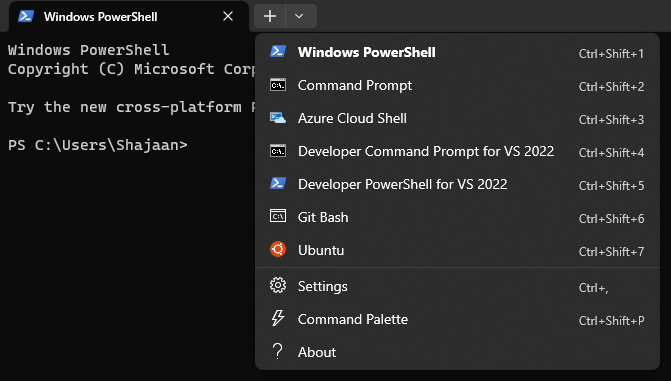
* [Download the Windows Terminal from the Microsoft Store ](https://apps.microsoft.com/store/detail/windows-terminal/9N0DX20HK701 )
If you are using the Windows Terminal, you just have to click the little arrow next to the + sign and then you will see Ubuntu.
### Setup a GUI for you Ubuntu
1. Update your Ubuntu
```bash
sudo apt-get update -y & & sudo apt-get upgrade -y
```
2. Install the XFCE4 Desktop
```bash
sudo apt install -y xrdp xfce4 xfce4-goodies
```
3. Setup the Desktop
```bash
sudo cp /etc/xrdp/xrdp.ini /etc/xrdp/xrdp.ini.bak
sudo sed -i 's/3389/3390/g' /etc/xrdp/xrdp.ini
sudo sed -i 's/max_bpp=32/#max_bpp=32\nmax_bpp=128/g' /etc/xrdp/xrdp.ini
sudo sed -i 's/xserverbpp=24/#xserverbpp=24\nxserverbpp=128/g' /etc/xrdp/xrdp.ini
echo xfce4-session > ~/.xsession
```
4. Setup the Remote Desktop Connection
```bash
sudo nano /etc/xrdp/startwm.sh
```
Comment these lines with a #
```bash
test -x /etc/X11/Xsession & & exec /etc/X11/Xsession
exec /bin/sh /etc/X11/Xsession
```
Add this line at the end of the file
```bash
startxfce4
```
Exit with Ctrl+S, Ctrl+X
5. Starting Ubuntu Desktop GUI
Open Ubuntu Terminal on your Windows and enter this command
```bash
sudo /etc/init.d/xrdp start
```
Then open *Remote Desktop Connection* by clicking the Windows key and connect to *localhost:3390*
### Memory - Optional
If WSL is taking too much memory, you can reduce with an easy step.
You just have to go to *C:\Users\YourUsername\.wslconfig* and create a *.wslconfig* file and write:
```bash
sudo /etc/init.d/xrdp start
[wsl2]
memory=3GB
```
### Installation of the necessary and up-to-date tools
```bash
sudo apt update
sudo apt install build-essential zlib1g-dev libncurses5-dev libgdbm-dev libnss3-dev libssl-dev libsqlite3-dev libreadline-dev libffi-dev curl libbz2-dev rsync make git
```
## Installation of ERPLibre under WSL2
Make sure to be in the directory where you want to clone the project.
```bash
git clone https://github.com/ERPLibre/ERPLibre.git
cd ERPLibre
make install
```
Add role to PostgresSQL, change `USERNAME` field in the command with your UNIX username from your WSL2 environment.
```bash
sudo service postgresql start
sudo su - postgres -c "createuser -s USERNAME" 2>/dev/null || true
```
## Common Problems During Installation
### Error During `make install`
Ensure all dependencies are installed correctly. Re-run the following command to fix any broken dependencies:
```bash
sudo apt-get install -f
```
### PostgreSQL Not Starting
Check the PostgreSQL service status with the following command:
```bash
sudo service postgresql status
```
If PostgreSQL is not running, try restarting it with:
```bash
sudo service postgresql restart
```
## Running ERPLibre
Everytime you restart your machine, the following command has to be executed to start the PostgreSQL service if it is not already running:
```bash
sudo service postgresql start
```
After that run this command in the root of the project:
```bash
./run.sh
```
## Verifying ERPLibre
While ERPLibre is running, make sure that you can connect to the following URL `http://localhost:8069` and have the ability to create, modify and remove databases.
## Set up Development Environment - PyCharm
### Install PyCharm
Install PyCharm from the following [link ](https://www.jetbrains.com/pycharm/download/#section=windows ):
```bash
https://www.jetbrains.com/pycharm/download/#section=windows
```
### Set up Pycharm
[UPD] support: drop Ubuntu 20.04/22.04, add AlmaLinux and Rocky
Ubuntu 20.04 and 22.04 leave EVERY architecture, not just s390x. pikepdf
needs qpdf 12.2, whose build requires C++20, while focal ships GCC 9 and
publishes no g++-10 for s390x at all. Python 3.8, node 10, cargo 0.67 and
OpenSSL 1.1.1 each had a workaround; the pile of them did not. 18.04
follows, already off the lists. The refusal lands before any apt, this
script also serving existing machines.
AlmaLinux 9 and 10, Rocky 9 and 10 join the catalog on all four
architectures: the twelve "latest" URLs were opened, with no index to
parse unlike Fedora. They would have booted unreachable though -- the
cloud-config forced "groups: users, sudo", but the RHEL family has no
sudo group, only wheel, and an unknown group makes useradd fail, hence no
password and no key. The very trap already known for Debian, repeated
elsewhere. Host side, EPEL and CRB are enabled: without them most -devel
packages are missing, silently.
The server / graphical choice gains Cinnamon, the Linux Mint desktop,
from the distribution's own repositories. Mint's repository is set aside:
plain HTTP, and i386/amd64 only, which would rule out arm64 and s390x.
Along the way, dnf now installs an ENVIRONMENT rather than a group --
"gnome-desktop" brings gdm and gnome-shell but not base-x, hence no X
server.
--- FR ---
Ubuntu 20.04 et 22.04 partent de TOUTES les architectures, pas seulement
de s390x. pikepdf réclame qpdf 12.2, dont la compilation exige C++20,
quand focal livre GCC 9 et ne publie même pas de g++-10 pour s390x.
Python 3.8, node 10, cargo 0.67 et OpenSSL 1.1.1 avaient chacun leur
contournement ; leur accumulation, non. 18.04 suit, déjà hors des
listes. Le refus tombe avant tout apt, ce script servant aussi les
machines existantes.
AlmaLinux 9 et 10, Rocky 9 et 10 entrent au catalogue, sur les quatre
architectures : les douze URL « latest » ont été ouvertes, aucun index à
analyser contrairement à Fedora. Elles auraient pourtant démarré
inaccessibles — le cloud-config imposait « groups: users, sudo », or la
famille RHEL n'a pas de groupe sudo mais wheel, et un groupe inconnu fait
échouer useradd, donc ni mot de passe ni clé. C'est le piège déjà connu
pour Debian, reproduit ailleurs. Côté hôte, EPEL et CRB sont activés :
sans eux la plupart des -devel manquent, en silence.
Le choix serveur / graphique gagne Cinnamon, le bureau de Linux Mint,
depuis les dépôts de la distribution. Le dépôt de Mint lui-même est
écarté : il est en HTTP nu et ne publie que i386 et amd64, ce qui
exclurait arm64 et s390x. Au passage, dnf installe désormais un
ENVIRONNEMENT et non un groupe — « gnome-desktop » apporte gdm et
gnome-shell mais pas base-x, donc pas de serveur X.
Assisted-by: Claude Opus 5
2026-08-11 18:46:11 -04:00
Select `Connect to WSL` under `Remote Development` . After that select your Ubuntu instace ("Ubuntu-24.04"). Point `Project directory` to the root of the project. Once everything has been selected and filled out correctly, click on `Start IDE and Connect` .
2026-02-15 01:07:25 -05:00

Press `CTRL+ALT+S` , search for `interpreter` and inside the `Python Interpreter` page, click on `Add Interpreter` and select `Add Local Interpreter...` .

Make sure to select `Virtualenv Environment` on the left and the `Existing` radio button. Once theses are both selected properly, point your interpreter to the `../ERPLibre/.venv/bin/python` directory of the project and click on `OK` .

If these last steps to set up your development environment were unsuccessful, follow the next "Manual" steps to set up your environment.
## Manual Installation
### Install Python 3.10.14
You can delete the files that are left over in your home directory regarding the python installation when the steps have been completed succesfully.
```bash
cd ~
wget https://www.python.org/ftp/python/3.10.14/Python-3.10.14.tgz
tar -xzf Python-3.10.14.tgz
cd Python-3.10.14
./configure --enable-optimizations
make -j $(nproc)
sudo make install
```
### Verify the installation
```bash
python3.10
```
### Set Python 3.10.14 as default
```bash
alias python='/usr/local/bin/python3.10'
source ~/.bashrc
```
### Set up Pycharm
Open the project directory in PyCharm.
Press `CTRL+ALT+S` , search for `interpreter` and inside the `Python Interpreter` page, click on `Add Interpreter` and select `On WSL...` .

Wait until PyCharm detects your WSL2 instance and press `NEXT` . Click on `System Interpreter` on the left, select the correct interpreter if it hasn't done so automatically and click `Create` .

Close the project's settings. Once PyCharm prompts you to import modules and allow it.
## Common problems with Windows Development
### Broken Terminal
Search for `terminal` in the settings, and under `Application Settings` in the `Shell path:` field enter the following line:
```bash
wsl.exe
```

### High Memory Usage warnings
If you experience high memory usage, click on `Help` in the toolbar and choose `Change Memory Settings` to increase the memory heap of the IDE.
### Missing or incorrect imported modules
PyCharm might not fully recognize some details from `requirements.txt` and `pyproject.toml` (e.g., specific module versions). If you encounter issues at runtime or while debugging, search for the correct version of the module and reinstall it using PyCharm's package manager.
### Can't run ERPLibre from PyCharm
If ERPLibre fails to run from PyCharm, execute the following command in the root directory of the project from the terminal in PyCharm or WSL2:
```bash
./script/ide/pycharm_configuration.py
```
### Can't restart ERPLibre
Run `htop` from the terminal in PyCharm or WSL2 and close the python processes related to ERPLibre to release the socket.
## References
[WSL Installation ](https://learn.microsoft.com/en-us/windows/wsl/install )
Comprehensive guide on installing Windows Subsystem for Linux (WSL) on Windows.
[PostgreSQL Official Documentation ](https://www.postgresql.org/docs/ )
Official PostgreSQL documentation for troubleshooting common issues and learning more about PostgreSQL commands and configuration.
[PyCharm Installation and Configuration ](https://www.jetbrains.com/pycharm/quickstart/ )
Quick start guide for setting up and configuring PyCharm, including handling Python modules and environment setup.
[WSL Troubleshooting ](https://learn.microsoft.com/en-us/windows/wsl/troubleshoot )
Troubleshooting guide for common issues encountered in WSL, providing solutions for various problems that may arise.
[Linux GUI ](https://hub.tcno.co/windows/wsl/desktop-gui/ )
Instructions for setting up a graphical user interface (GUI) in WSL, which might be helpful for better integration of Linux applications.
[Memory Problem ](https://www.aleksandrhovhannisyan.com/blog/limiting-memory-usage-in-wsl-2/ )
Guide on how to manage and limit memory usage in WSL 2 to avoid high memory consumption issues.
